
F.A.Q.
We understand that purchasing a pool cover naturally raises many questions. That’s why we’ve gathered here the answers to the most frequently asked questions about the Coverseal, its installation, maintenance, and much more.
You’ll find them below, organised by theme or accessible through the quick search feature.
General information
- Delete and reinstall the mobile app: Click directly on the QR codes visible on page 4 or search for “Coverseal” in your store. On first start, allow the use of Bluetooth. The cover can only be connected to one phone at a time.
- Connect close to your cover: If an update is available, the app will guide you step by step. Follow the instructions displayed on the screen. You may need to unplug and then reconnect the power cables. Refer to the provided video if necessary.
- If the “Firmware Installation” or “Cover Check” step loops for more than 2 minutes, follow these steps:
- Check the power supply: open the side hatch and check that the power connectors (the black cables) are properly seated: from the solar panel (lower cable) and the battery (upper cable). If the cover remains undetectable in the app or if it does not move, proceed to the next step.
- Reinstall the mobile app: Delete the app and reinstall it. Click here for iPhone or here for Android. When opening the app for the first time, remember to allow Bluetooth access. Ensure that only one phone is connected to the cover, and log in while standing close to it. If your cover requires an update, a banner will appear directly within the app. To start the update, simply unplug and reconnect the power cables. Refer to the accompanying vidéo if needed. If the issue persists, move on to the next step.
-
Test without the solar power supply: unplug the cable from the solar panel (lower black cable). Then try with the wired control or the Open/Close buttons: if the buzzer remains silent, it is probably the fuse (proceed to step 4). If the buzzer sounds but the cover remains still or jerky, it is probably the battery.
-
Replace the fuse:Fuse version 1: disconnect the two black cables, open the electronic box with a small screwdriver and replace the fuse with the supplied 20A fuse (inside the box). Reconnect, test the cover over 1 m with the buttons or wired control, then reconnect via the app if everything works. Reconnect and test.Fuse version 2: open the side hatch and disconnect the two black power cables. First check the battery fuse (at the bottom) and replace it if damaged. Reconnect and test. If the problem persists, check the motor fuse (at the top), replace it, if necessary, then reconnect the cables and restart the application.If the problem still persists after all these steps, contact your Installer.
Practical questions
Yes, by reducing the intensity of the spray and using a neutral pH soap. Special attention should be paid to rails where regular cleaning is essential to ensure the performance and longevity of your cover. For the trim, we recommend using a microfiber cloth to preserve its appearance and durability.
The membrane that strongly limits photosynthesis and prevents leaves from falling into your pool should keep you from having to resort to shock treatments to purify your pool water. Nevertheless, under exceptional circumstances, this type of treatment may be considered. However, it is strongly recommended to keep the Coverseal open for 24 to 48 hours, to avoid any excessive concentration of chemicals that could damage the membrane.
No. Repeated shocks or excessive pressure may cause deformation of the trim or damage to the mechanics. Such damage is not covered by the warranty.
- Delete and reinstall the mobile app: Click directly on the QR codes visible on page 4 or search for “Coverseal” in your store. On first start, allow the use of Bluetooth. The cover can only be connected to one phone at a time.
- Connect close to your cover: If an update is available, the app will guide you step by step. Follow the instructions displayed on the screen. You may need to unplug and then reconnect the power cables. Refer to the provided video if necessary.
- If the “Firmware Installation” or “Cover Check” step loops for more than 2 minutes, follow these steps:
Download the Coverseal app: Click directly on the QR codes visible on page 4 or search for “Coverseal” in your store.
If you already have an account:
- Check that your phone is properly connected to the internet. Log in with your ID (the email address used during installation) and your password. If you have forgotten your password, click on ‘Forgot password’. You will then receive a 6-digit code by email (wait up to 1 minute). If you do not receive it: check your spam or confirm that the address is correct. If you still receive nothing, contact us!
- Enter your 6-digit code. If the message “Token has expired” appears, you may have requested a new code too soon. If this is the case, wait 2 minutes, delete all emails from noreply@coverseal.com, request a new code and if the problem persists, contact us.
- Lastly, once you have received the code, create a new password (minimum 8 characters, including 1 number and 1 special character).
If you do not yet have an account :
-
Your phone must be connected to the internet. You must be invited by an installer or the cover owner.
If you are a guest, contact the owner. If you are the owner, contact your Installer.
- The owner can check whether the email address used is correct via: Cover details → Users
- Check the power supply: open the side hatch and check that the power connectors (the black cables) are properly seated: from the solar panel (lower cable) and the battery (upper cable). If the cover remains undetectable in the app or if it does not move, proceed to the next step.
- Reinstall the mobile app: Delete the app and reinstall it. Click here for iPhone or here for Android. When opening the app for the first time, remember to allow Bluetooth access. Ensure that only one phone is connected to the cover, and log in while standing close to it. If your cover requires an update, a banner will appear directly within the app. To start the update, simply unplug and reconnect the power cables. Refer to the accompanying vidéo if needed. If the issue persists, move on to the next step.
-
Test without the solar power supply: unplug the cable from the solar panel (lower black cable). Then try with the wired control or the Open/Close buttons: if the buzzer remains silent, it is probably the fuse (proceed to step 4). If the buzzer sounds but the cover remains still or jerky, it is probably the battery.
-
Replace the fuse:Fuse version 1: disconnect the two black cables, open the electronic box with a small screwdriver and replace the fuse with the supplied 20A fuse (inside the box). Reconnect, test the cover over 1 m with the buttons or wired control, then reconnect via the app if everything works. Reconnect and test.Fuse version 2: open the side hatch and disconnect the two black power cables. First check the battery fuse (at the bottom) and replace it if damaged. Reconnect and test. If the problem persists, check the motor fuse (at the top), replace it, if necessary, then reconnect the cables and restart the application.If the problem still persists after all these steps, contact your Installer.
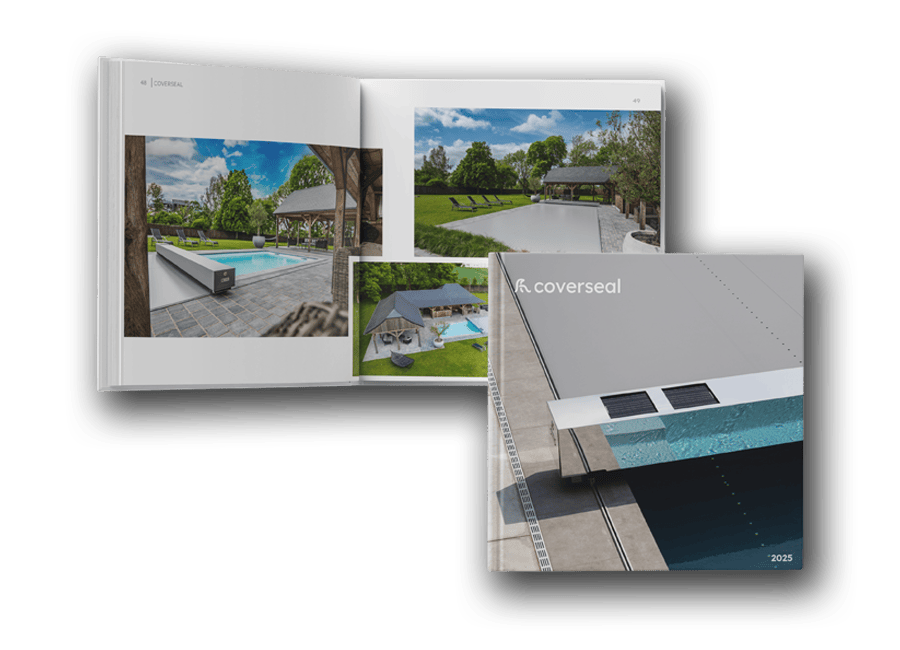
Request our brochure
"*" indicates required fields